
How to Sync Xero to Google Sheets (Automatic and Manual Options)
Learn how to sync Xero to Google Sheets
Many modern tools promise to “kill spreadsheets”, but accountants still rely on Google Sheets for flexibility and reporting. The only downside is getting your Xero data into Sheets. The simplest (but longest) way is the manual route, exporting CSVs from Xero and opening them in Sheets, but I’ll also show you an automated approach using CountingKit so your data stays up-to-date with minimal effort.
Manual Export from Xero
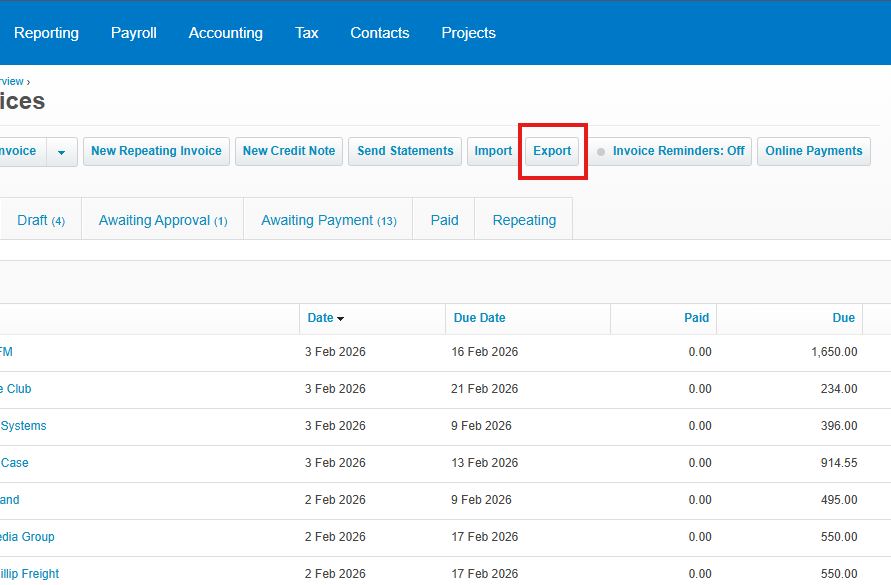
First, lets go through the manual method. Xero makes it easy to download your data as CSV or Excel files. For example, to export invoices, go to Business > Invoices and click the Export (or Download) button; for reports like Profit & Loss or Balance Sheet, go to Accounting > Reports and run the report, then export it. In each case you choose filters (dates, status, etc.), hit Export CSV/XLSX, and save the file. Finally, open that file in Google Sheets for analysis.
Here’s the manual process in steps:
- Log in to Xero and navigate to the data you need (e.g. Invoices under Business or financial Reports under Accounting).
- Filter or select your data by date range, contact, account, etc. to get exactly what you need.
- Download the data by clicking the Export or Download CSV/Excel button on the page. Xero will generate a CSV or XLSX file of your selection.
- Open in Google Sheets: Go to Google Sheets and import or open the downloaded file. You can then format it, create charts, or combine it with other data.
While this works for one-time snapshots, you must repeat it each time you need fresh numbers. , This approach is quick to set up with “no extra tools,” but you have to repeat it for every update and every client. In practice that makes it time-consuming and error-prone .Data can go stale fast if you forget to re-export, and manual copying takes a long time!
Automate Xero → Google Sheets Sync with CountingKit
Instead of manually downloading and uploading files, CountingKit can keep Google Sheets filled with live Xero data. Connecting your Xero account to CountingKit allows you to export your accounting data directly into Sheets for reporting and analysis. Once set up, new invoices, contacts, payments, bank transactions and reports flow into your spreadsheet on a schedule you define, no copying and pasting required.
Here’s how to set it up with CountingKit:
- Connect your Xero account: In the CountingKit dashboard, go to Connections and select Xero. Click Connect Xero Account and authorize the app. You’ll be redirected to Xero – log in if needed, select the organization, and click Allow to grant read-only access. (You need Xero Admin/Advisor rights.)
- Connect your Google account: Next, in Connections choose Google and click Connect with Google. Sign in to the Google account that owns your Sheets and grant CountingKit permission to access Google Sheets.
- Add a Google Sheet as a destination: After authorizing Google, go to the Google Sheets integration page in CountingKit. Click Add Sheet. You can either create a brand new spreadsheet or select an existing one from your Drive. The chosen Sheet becomes the destination for your Xero data.
- Create a data export: Now go to Data Export (or Export Builder) and click New Export. Give it a name and choose Xero as the data source (picking the connected organization). For the destination, select your connected Google Sheet. Then configure which Xero data to export – for example, add one tab for Invoices, another for Bank Transactions, etc., choosing the desired columns or report options. You can build multiple exporters for different sheets or tabs if needed.
- Set a refresh schedule: Finally, set how often CountingKit should run the export (hourly, daily, weekly, etc.) and save the exporter. CountingKit will now pull your Xero data into the Google Sheet on that schedule, refreshing the tabs automatically (you can choose whether each run replaces or appends data).
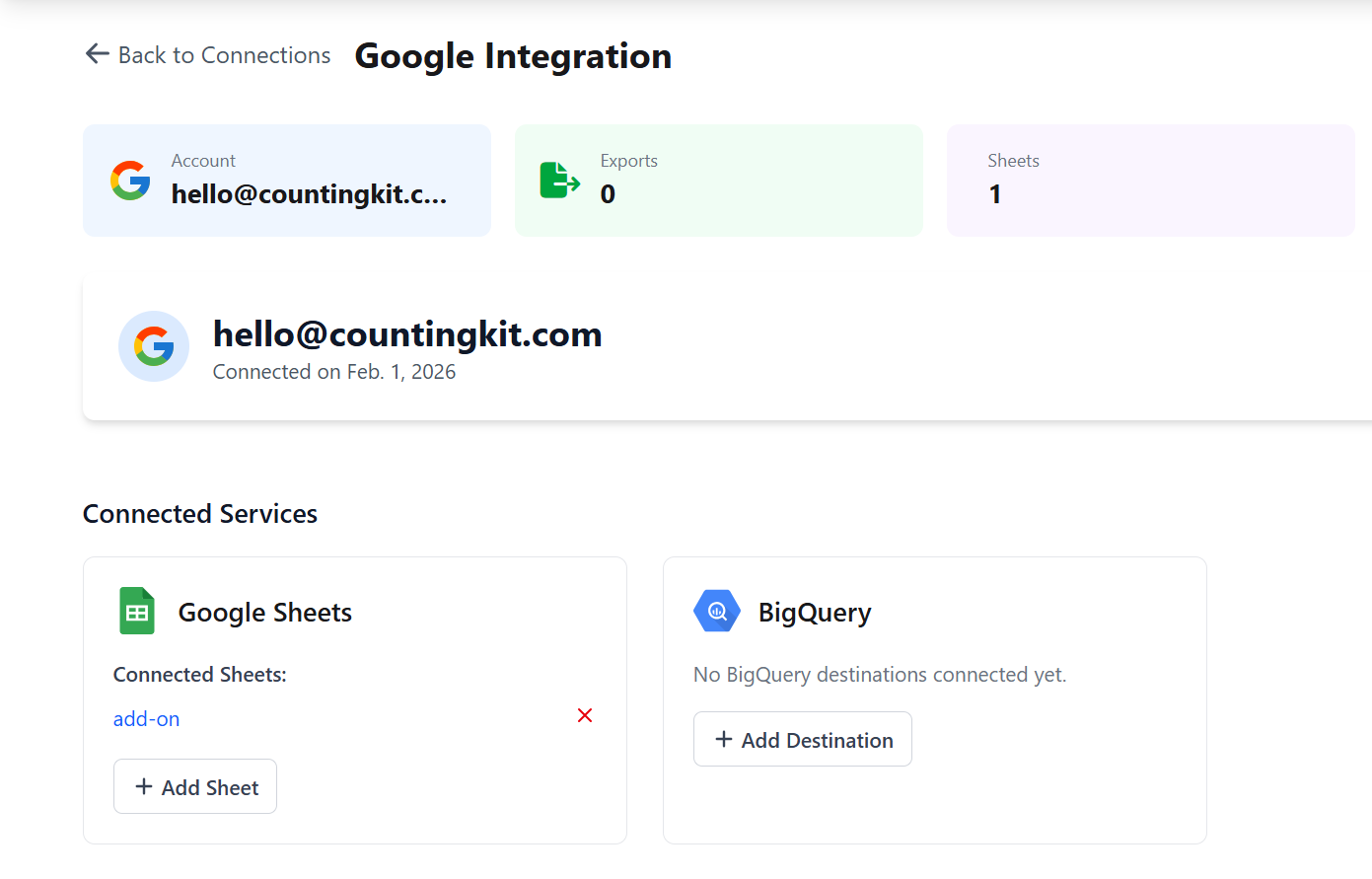
After setup, your Google Sheet will auto-fill with live Xero data. For example, one tab might list all invoices, another might have bank transactions, and so on.
CountingKit handles the syncing behind the scenes, so you never have to download CSVs or write scripts.
Ready to eliminate manual exports? CountingKit lets you connect your Xero and Google accounts and sync data on autopilot. Spend your time analysing the numbers, not exporting them.